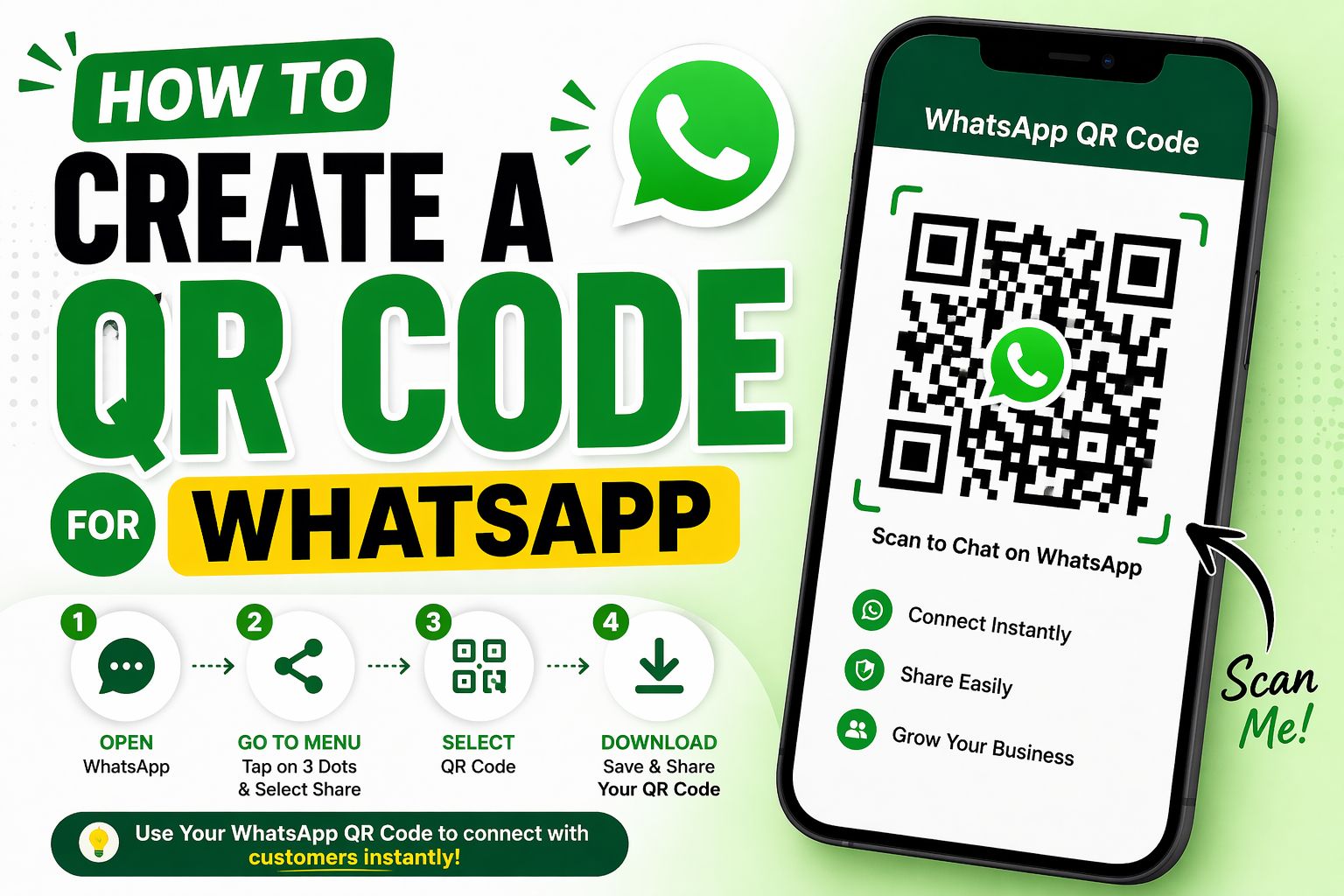
Imagine a customer sees your shop, scans a code on your window, and instantly starts chatting with you on WhatsApp — without saving your number first. That's exactly what a WhatsApp QR code does.
In this guide, you'll learn how to create a QR code for WhatsApp completely free, how to customize it, and where to use it for maximum results.
What Is a WhatsApp QR Code?
A WhatsApp QR code is a scannable code that, when scanned, automatically opens WhatsApp and starts a chat with your number. The person scanning doesn't need to save your contact — they just scan and chat.
You can also pre-fill a message, so when someone scans your code, a custom message like 'Hi, I'm interested in your services' is already typed and ready to send.
Who Needs a WhatsApp QR Code?
- Shop owners who want customers to contact them quickly
- Freelancers sharing their WhatsApp on portfolios or resumes
- Restaurant owners who want to take orders via WhatsApp
- Teachers sharing their contact with students or parents
- Anyone who wants an easy, shareable way to start a WhatsApp conversation
How to Create a WhatsApp QR Code for Free
- Go to www.adziohub.com/tools/qr-code-generator
- Select 'WhatsApp' as the QR code type
- Enter your WhatsApp number with country code (e.g. +91 98765 43210 for India)
- Optionally add a pre-filled message like 'Hello, I'd like to know more about your services'
- Click 'Generate QR Code'
- Download and use anywhere — website, posters, business cards, or social media
| Important: Always include the country code with your number. For India, that's +91. Without the country code, the QR code will not work for international contacts. |
Where to Use Your WhatsApp QR Code
On your shop or office signage
Print and display your WhatsApp QR code at your shop entrance or reception desk. Customers can scan and ask questions or place orders without waiting in line.
On your business card
Replace your plain WhatsApp number with a scannable code. It looks professional and makes it easier for contacts to reach you instantly.
On your website or landing page
Add the QR code image to your 'Contact Us' page. Mobile visitors can scan directly from their screen to start a conversation.
In email signatures
Add the QR code to your email signature as an image. Recipients on mobile can scan and WhatsApp you without copying and pasting your number.
On product packaging
If you sell physical products, add a WhatsApp QR code to your packaging. Customers can scan for support, feedback, or reordering.
WhatsApp QR Code vs WhatsApp Business QR Code — What's the Difference?
| Feature | Regular WhatsApp QR | WhatsApp Business QR |
| Cost | Free (AdzioHub) | Free (in-app) |
| Custom message | Yes | Yes |
| Auto-replies | No | Yes |
| Business profile | No | Yes |
| Best for | Personal use | Business use |
Tips to Get More Scans
- Place your QR code at eye level — codes placed too high or too low get ignored
- Add the label 'Chat with us on WhatsApp' below the code
- Use a pre-filled message to reduce friction — the easier it is, the more people will scan
- Test the code yourself on both Android and iPhone before displaying it
Conclusion
A WhatsApp QR code is one of the simplest and most effective tools for any Indian small business. It removes every barrier between a potential customer and a conversation with you.
Create yours for free in under a minute on AdzioHub — no sign up, no cost, no watermark.
Create Your WhatsApp QR Code Free: www.adziohub.com/tools/qr-code-generator