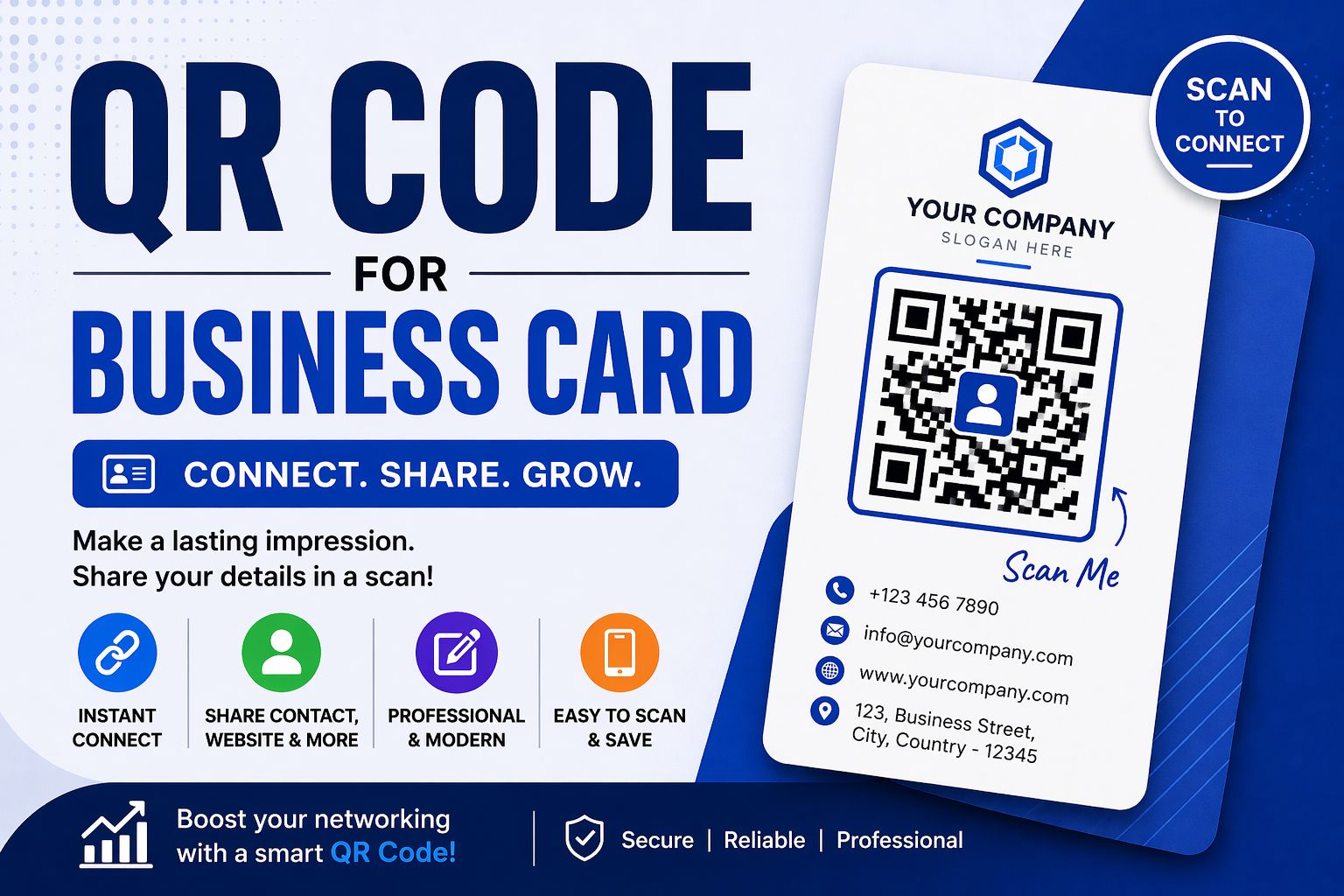
Business cards are still one of the most powerful networking tools — but in 2025, a plain card with just a name and phone number isn't enough. Adding a QR code for your business card instantly makes you look more professional and helps people connect with you faster.
In this guide, you'll learn how to create a QR code for your business card completely free, what information to include, and how to design it for maximum impact.
Why Add a QR Code to Your Business Card?
- People can instantly visit your website, LinkedIn, or portfolio with one scan
- No need to manually type long URLs or email addresses
- Makes your card stand out from competitors
- Saves space — one QR code can hold all your contact info
- Environmentally friendly — people scan once and save digitally
A business card with a QR code bridges the gap between your physical presence and your digital identity. It's the fastest way to convert a handshake into a digital connection.
What Should Your Business Card QR Code Link To?
This is the most important decision. Your QR code can link to different things depending on your goal:
| Goal | Link To | Best For |
| Get more clients | Website / Portfolio | Freelancers, agencies |
| Professional networking | LinkedIn profile | Corporate professionals |
| Share all contacts | vCard / Contact file | Sales executives |
| Quick chat | WhatsApp link | Shop owners, support |
| Build social following | Instagram / YouTube | Content creators |
How to Create a Free QR Code for Your Business Card
- Visit www.adziohub.com/tools/qr-code-generator
- Select the QR code type (URL, vCard, WhatsApp, etc.)
- Enter your website link, phone number, or LinkedIn URL
- Click 'Generate'
- Download as PNG (for digital cards) or ask your printer for high-res SVG
- Add the QR code image to your business card design
| Free Tip: Most business card printing services (like Vistaprint or local printers) accept PNG images. Just paste your downloaded QR code into your card design — no extra software needed. |
Design Tips for Business Card QR Codes
Size matters
Your QR code should be at least 2.5 cm x 2.5 cm (1 inch x 1 inch) on a printed card. Smaller than this and some phones may struggle to scan it reliably.
Keep it high contrast
The classic black-on-white QR code is still the most reliable. If you want to match your brand colors, make sure there's strong contrast between the code and the background.
Add a call-to-action
Don't just place a mysterious square on your card. Add a small label beneath it like 'Scan to visit my website' or 'Scan to connect on LinkedIn'. This increases scan rates significantly.
Place it on the back
The front of your card is prime real estate for your name and title. Put the QR code on the back with a brief CTA. This keeps the front clean and professional.
Common Mistakes to Avoid
- Generating a QR code and not testing it — always scan before printing
- Linking to a page that is not mobile-friendly — 95% of QR scans happen on phones
- Making the QR code too small — minimum 2.5 cm for print
- Using a low-resolution image — download at the highest available quality
- Forgetting to update the link if your website changes
Conclusion
Adding a QR code to your business card is one of the easiest and most effective upgrades you can make. It takes less than 2 minutes with AdzioHub's free QR code generator, and the impact on your professional image is immediate.
Stop handing out plain cards. Give people a reason to take action the moment they receive your card.
Create Your Business Card QR Code Free: www.adziohub.com/tools/qr-code-generator